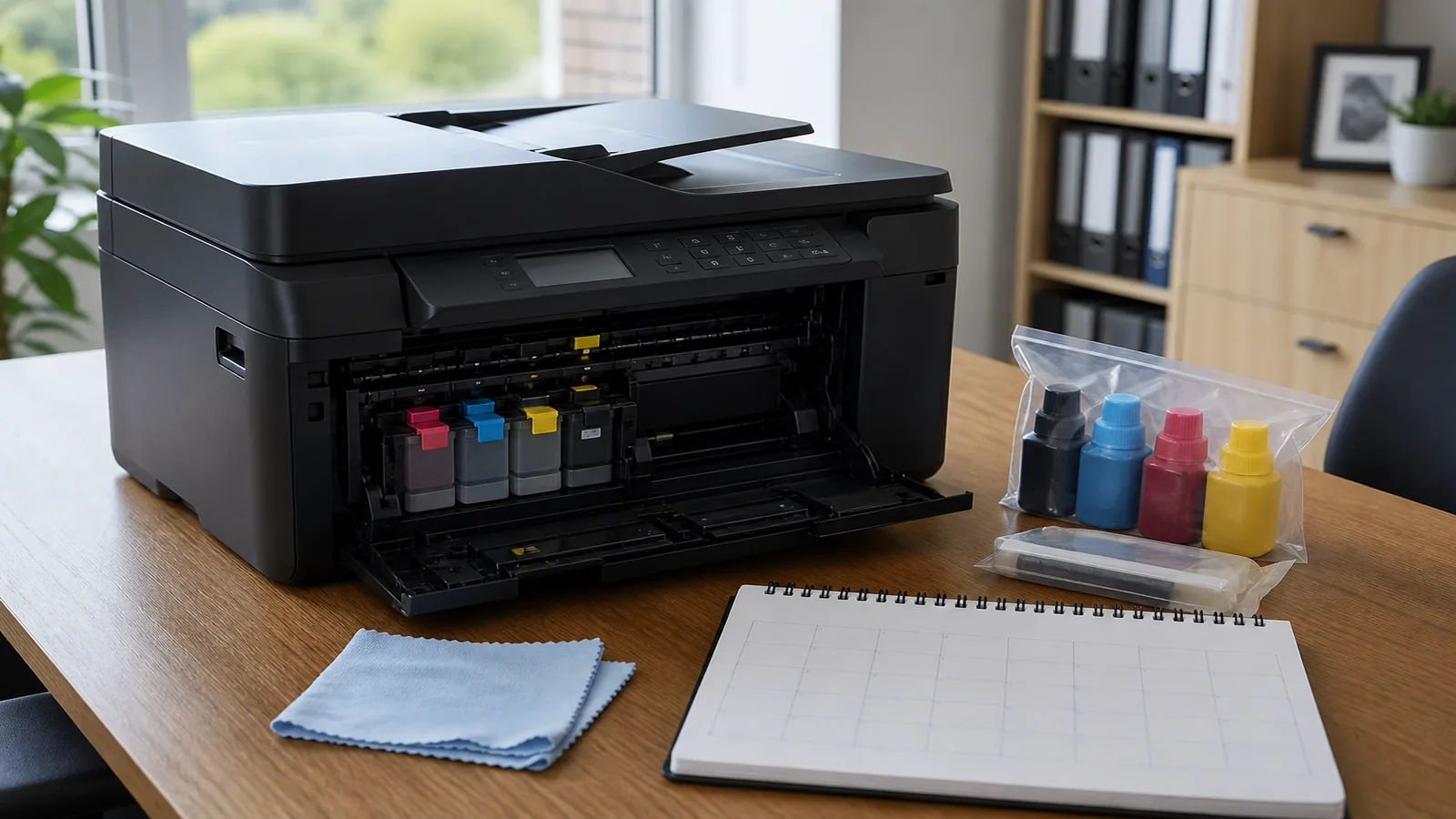
Monthly brother a3 inkjet maintenance checklist uk: A Straight UK Answer for Brother A3 MFP Owners
Direct UK answer in the opening paragraph
A practical monthly brother a3 inkjet maintenance checklist uk is a short, repeatable routine: keep paper and the path clean, confirm wireless or wired connectivity still works for everyday jobs, run only the printer’s own cleaning or nozzle checks when print quality dips, and stock the correct Brother ink before you run dry—without inventing yields, speeds, or third-party “performance” claims.
How this relates to Brother MFC-J6540DW A3 inkjet MFP (print/copy/scan/fax, Wi-Fi, ink)
This checklist is aimed at owners of Brother A3 inkjet multifunction printers used in UK homes and small offices. The live product in focus is the Brother MFC-J6540DW A3 inkjet MFP, which combines print, copy, scan and fax with wireless and Ethernet networking and Brother ink options. Brother’s wider UK A3 inkjet all-in-one range is positioned as professional wireless devices with mobile-connect style workflows and optional high-yield ink / EcoPro trial language on Brother UK pages for related models.
Independent coverage has described the Brother MFC-J6540DW as an entry-level A3 model in Brother’s Business Smart Series and as an office-ready A3 multifunctional with automatic double-sided printing; treat those as context for use-case, not as laboratory test results invented here.
- Use the printer for mixed A4/A3 document workflows where print, copy, scan and fax matter.
- Prefer Brother’s own Wi-Fi/Ethernet and Mobile Connect paths rather than ad-hoc workarounds.
- Plan ink replenishment around genuine Brother cartridges (for example LC422-family ink sold in the UK), without stating unverified page yields.
Practical checklist, decision table or fix ladder
Monthly maintenance checklist
- Paper and trays: Remove dust, fan sheets, and load only supported sizes for your jobs; clear any stray scraps so A3 and A4 feeds stay reliable.
- Exterior and glass: Wipe the casing and scanner glass with a dry or slightly damp lint-free cloth; keep liquids away from electronics.
- Connectivity: Confirm Wi-Fi or Ethernet still reaches the devices you print from; reconnect via Brother’s guided tools if the network changed.
- Print quality spot-check: Print a simple text-and-colour page. If streaks or missing colours appear, use the machine’s built-in nozzle check or cleaning cycle—once or twice, not endlessly.
- Ink readiness: Note on-screen or driver ink status and reorder genuine Brother ink before colours run out mid-job.
- Scan/copy/fax sanity check: Run one short copy or scan and, if you use fax, a test to a known number so those paths stay familiar.
Decision table
| Symptom | First step | Next step | Stop and escalate when |
|---|---|---|---|
| Faded or streaky prints | Nozzle check / single clean | Second clean only if needed; check ink levels | Quality does not improve after guided cleans |
| Cannot find the printer on Wi-Fi | Confirm SSID/password and power-cycle router/printer | Reconnect with Brother Mobile Connect or driver setup | Other network devices work but this MFP never reappears |
| Paper jams or skew on A3 | Clear path fully; reload correctly | Try a fresh ream of suitable paper | Repeated jams after clear path and correct loading |
| Scan or copy looks dirty | Clean scanner glass | Retry a known-good original | Marks persist on every scan after cleaning |
Simple fix ladder
- Power, paper, and ink status.
- One quality check page.
- Built-in clean/nozzle tools only as prompted by results.
- Network rejoin if jobs never arrive.
- Brother support or your supplier if hardware faults remain—use confirmed details DIY “speed tests” or third-party specs.
Claim-safe boundaries (no invented specs, no HP DeskJet primary)
Stay within verified positioning: this article does not invent page yields, ISO speeds, EcoPro pricing, laboratory reviews, or compatibility claims beyond print/copy/scan/fax, Wi-Fi/Ethernet, Mobile Connect, and Brother ink/EcoPro language already associated with Brother’s A3 inkjet all-in-ones. Do not treat an HP DeskJet (including DeskJet 4120e) as the primary product here; the live hero SKU remains the Brother MFC-J6540DW A3 inkjet MFP.
If a figure, speed, yield or “expert score” is not on a verified Brother datasheet or the allowed sources you actually cite, leave it out.
Next step to /detail/brother-mfc-j6540dw-a3-printer/
When you want model-specific options, ink paths and current UK product detail for the Brother MFC-J6540DW A3 inkjet MFP, review the current product details for the Brother MFC-J6540DW A3 printer and match maintenance habits to the device you actually own.
FAQ
How often should I run a cleaning cycle?
Only when a monthly quality check shows missing nozzles or streaks. Extra cleans waste ink and are not a substitute for correct cartridges or a clear paper path.
Does this checklist replace the Brother manual?
No. Use Brother’s on-device menus and documentation for model-specific steps; this page is a UK use-case routine for A3 inkjet MFPs such as the MFC-J6540DW.
Which ink should I plan for in the UK?
Plan around genuine Brother ink suitable for your exact model (LC422-family products are commonly associated with this class of Brother inkjet in the UK). Do not rely on unverified third-party yield promises.
Where can I read broader context on Brother A3 inkjets?
Brother UK describes related professional A3 inkjet wireless all-in-ones on its store pages, and independent write-ups discuss the MFC-J6540DW as an office-oriented A3 multifunction printer—useful for orientation, not as invented lab data.